
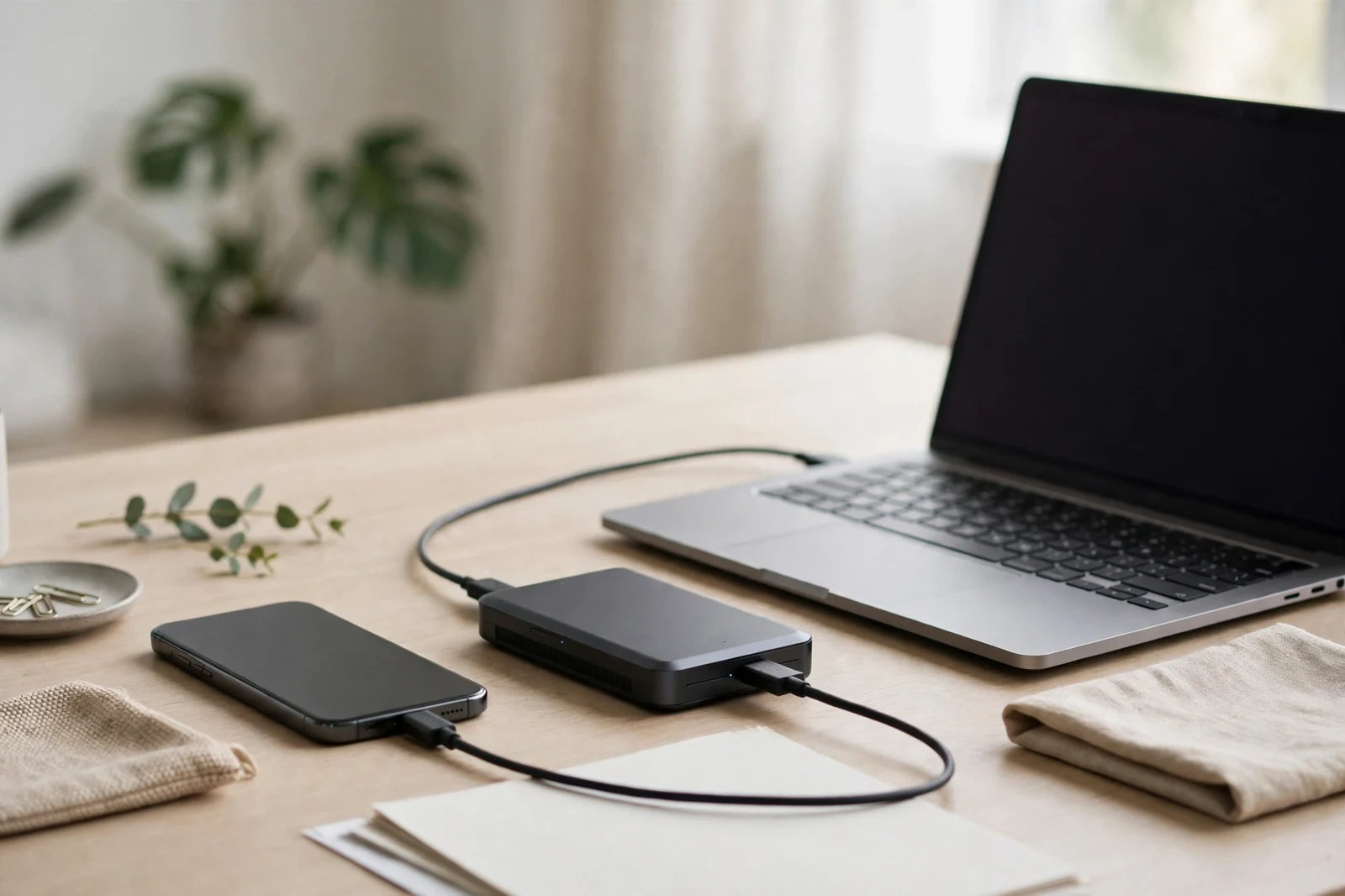
Your phone probably holds more of your life than any filing cabinet ever did: years of photos, conversations, banking apps, tickets, documents and contacts. Learning how to back up your phone properly is the difference between a lost handset being an inconvenience and it being a disaster. The process takes ten minutes to set up, costs nothing in its basic form, and then runs quietly in the background. This guide covers both cloud and computer backups, how to check they are actually working, and the habits that keep your data safe.
Why a Backup Matters More Than You Think
Phones are lost, stolen, dropped in water and broken every day, and a handset that fails without warning takes everything on it with it. Even careful owners get caught out: a cracked screen can leave a working phone you simply cannot unlock or use. Photos are usually the irreplaceable part. Documents can be re-downloaded and apps reinstalled, but a child’s first steps or a holiday album that exists nowhere else is gone for good.
A good backup is also what makes changing phones painless. With a current backup, a new handset can restore your messages, settings and photos in an afternoon. Without one, you start from nothing. Think of it the way motorists now think of service records: our article on digital service history shows how records moved from paper booklets to connected systems — your phone data deserves the same treatment, kept safely beyond the device itself.
Cloud Backups: The Set-and-Forget Option
Cloud backup copies your data to your account with Apple or Google, automatically, whenever the phone is charging and connected to Wi-Fi. On an iPhone, open Settings, tap your name, then iCloud and iCloud Backup, and switch it on. On Android, open Settings, then Google and Backup, and enable backup to Google Drive. Both services cover photos, messages, app data, settings and more.
Because cloud backups travel over your home connection, a slow or unreliable network can leave them incomplete. If backups keep stalling, our guide on how to improve home Wi-Fi will help you get a stronger, faster signal. Free cloud storage is limited — typically 5 GB with Apple and 15 GB with Google — and heavy photo libraries outgrow it quickly. A modest paid tier is usually worth it, but first check what is consuming space; old videos are the usual culprit.
Photos deserve a separate decision. Both Apple Photos and Google Photos can sync your library continuously rather than waiting for a full backup. Switch photo sync on, choose original quality if storage allows, and your pictures become safe within hours of taking them rather than at the next backup.
How to Back Up Your Phone to a Computer
A computer backup is the belt to the cloud’s braces: a complete copy under your own roof, free of storage limits and subscription fees. On a Mac, connect the phone by cable, open it in Finder, and choose to back up all data to the Mac — tick the option to encrypt the backup, because encrypted backups include saved passwords and health data. On Windows, the Apple Devices app or iTunes does the same job. Android owners can copy folders directly by USB, or use the manufacturer’s desktop software for a fuller backup.
Computer backups only protect you if you make them. Put a monthly reminder in your calendar, and make a fresh one before any big event: a phone repair, a system update, a holiday or handing the handset to a child. Remember that your phone is also the key to your connected home and car — apps control everything from smart beauty mirrors to the connected car features covered in our piece on BMW’s connected services — so a restore also brings those controls back.
How Often Should You Back Up?
The honest answer is: more often than feels necessary. With cloud backup switched on, the phone copies itself most nights, and that rhythm suits almost everyone. The real question is how much you stand to lose since the last backup. If the answer would hurt — a week of holiday photos, a month of messages — the interval is too long. Before travel, celebrations or any day you expect to take a lot of photos, trigger a manual backup from the settings screen before you leave the house. It takes two minutes on Wi-Fi and means the day’s memories are protected whatever happens later.
What a Backup Does and Does Not Include
No backup is literally everything, and knowing the gaps prevents nasty surprises. A standard backup covers your photos (if photo sync or backup is enabled), messages, contacts, calendars, app data, settings and home-screen layout. It does not usually include the apps themselves — those download again from the store — and some apps deliberately exclude sensitive data, such as banking logins, which you will need to set up again on a new device.
Two areas catch people out regularly. The first is messaging apps with their own systems: WhatsApp, for example, backs up to your cloud account on its own schedule, which you should check separately in the app’s settings. The second is two-factor authentication. If your authenticator codes live only on the phone you have lost, getting back into accounts can take days. Where services offer recovery codes, print them and keep them somewhere safe at home.
Check That Your Backup Actually Works
A backup you have never checked is a hope, not a plan. Both systems show the date and time of the last successful backup in the same settings screen where you enabled it. Glance at it now and then: if the last backup is weeks old, find out why — storage full, Wi-Fi off at night and battery-saving settings are the usual causes.
Also protect the account itself. Your cloud account holds the backup, so it needs a strong, unique password and two-factor authentication. Without those, the same account that safeguards your data becomes the way in for someone else. And take care with app data that lives partly outside the backup: services such as AI skin analysis apps store your history in their own accounts, so check their individual export or sync settings too.
Backing up your phone is one of those small jobs that only ever proves its worth once — usually on the worst possible day. Ten minutes of setup today means that day becomes a nuisance rather than a loss. Set up the cloud backup, make one computer copy, check the date occasionally, and then forget about it with a clear conscience.